
T01 BMS Monitor User Manual v2.6
Complete guide to monitoring and configuring DS4A Battery Management Systems
Installation
Download the BMS Monitor App
To download the app, please verify your DS4A battery using the MAC address and PIN from your battery label.
Where to find your MAC address and PIN
- Check the label on your DS4A battery
- The MAC address is a 12-character code (e.g., AA:BB:CC:DD:EE:FF)
- The PIN is a 6-digit number printed on the label
- If you cannot find this information, please contact DS4A support
Installing from APK
- Download the APK file from DS4A to your Android device
- On your Android device, navigate to Settings > Security
- Enable Install from unknown sources (or allow installation from the source app)

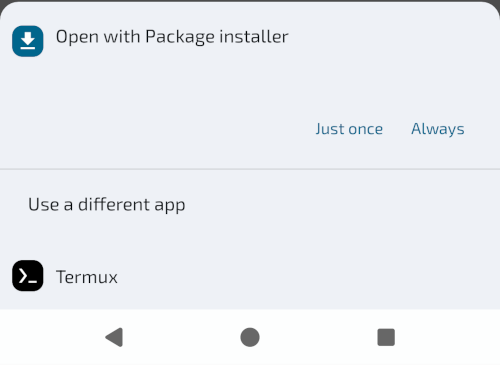
- Open the downloaded APK file
- Tap Install when prompted
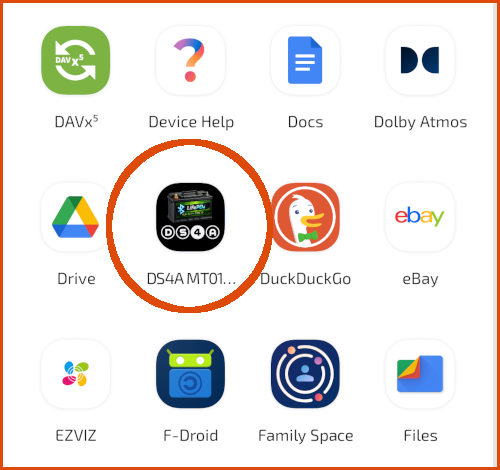
- Once installed, tap Open or find the app in your app drawer
Connecting to Your BMS
Standard Connection
- Ensure Bluetooth is enabled on your Android device
- Make sure your BMS is powered on
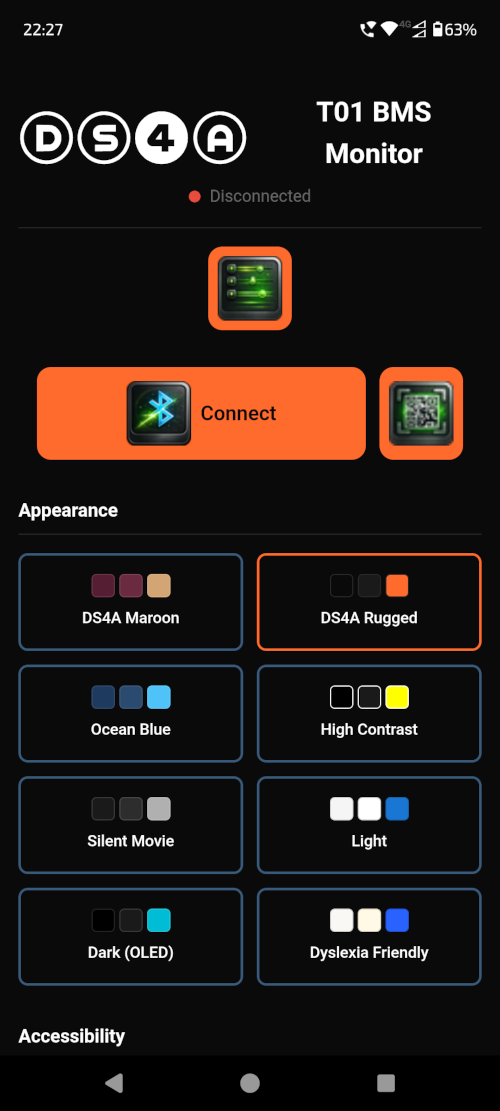
- Open the app and tap the Connect button (Bluetooth icon)
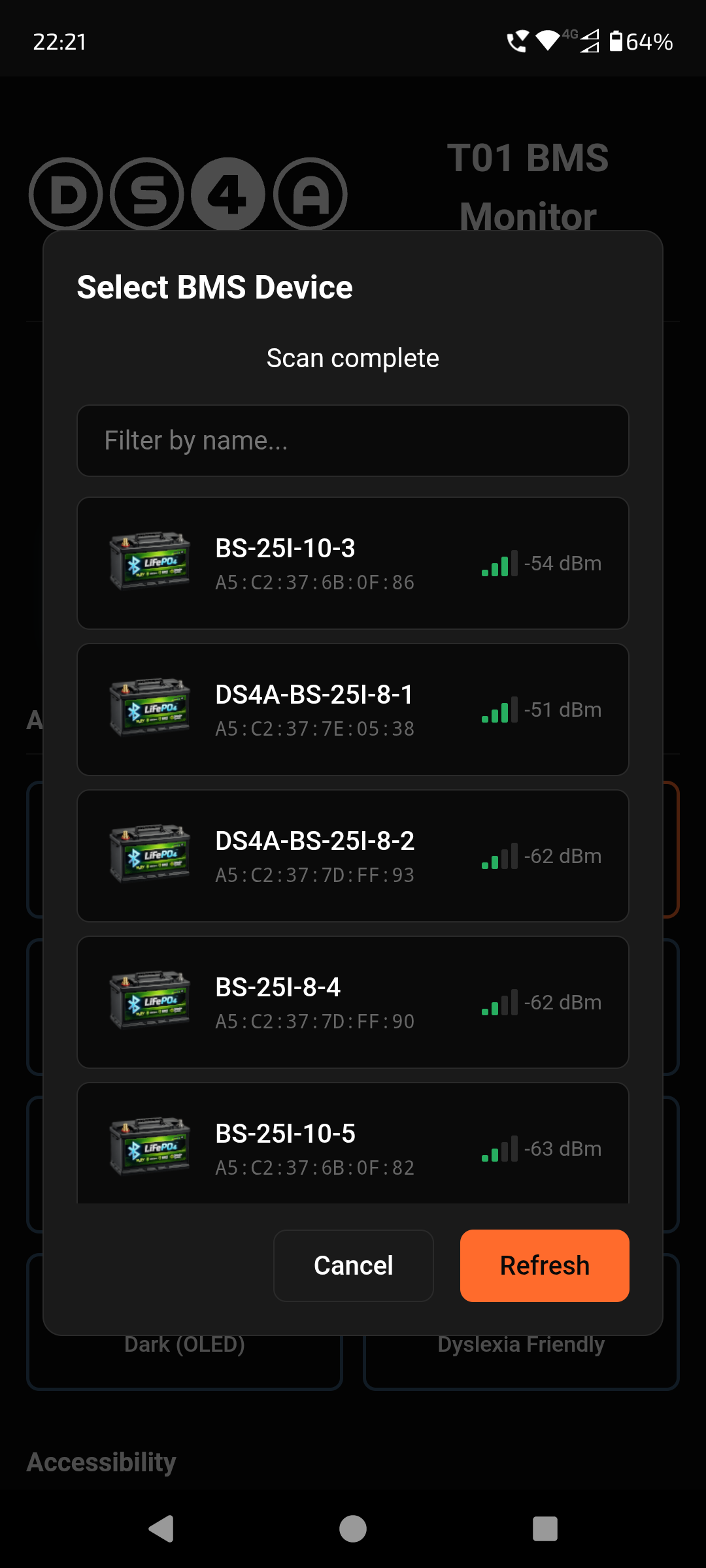
- A device picker will appear showing nearby BLE devices
- Each device shows:
- Device name
- MAC address
- Signal strength indicator (bars)
- Use the filter field to search by name or MAC address
- Tap your BMS device to connect (typically named "DS4A-" or similar)

- Wait for the connection to establish (the status dot turns green)
QR Code Connection
If your BMS has a QR code label:
- Tap the QR Scan button (QR Code icon) next to the Connect button
- Point your camera at the BMS QR code
- The app will automatically read the QR code and connect to the device
💡
QR Code Scanning: Hold your device steady, around 10-20cm from the QR code
Connection Status
The status bar at the top shows your connection state:
- Red dot - Disconnected
- Green pulsing dot - Connected and polling data
- Device name - Shows the name of the connected BMS
Disconnecting
Tap the Disconnect button (the Connect button changes appearance when connected) to safely disconnect from your BMS.